Greeting Card Maker Software
Home > Greeting card maker software working procedure

Greeting card maker software working procedure:

When you run the software, the initial screen as shown in the figure below will appear:

Greeting Card Maker Software

It includes following options to select and create Greeting card format:

Start with New Label Format: This option is used to start creating label with new label format.

Open with Existing Label Format: This option is used to start creating label with existing label format.

Select one of the following option and click on ‘OK’ button.

Start with New Label Format:

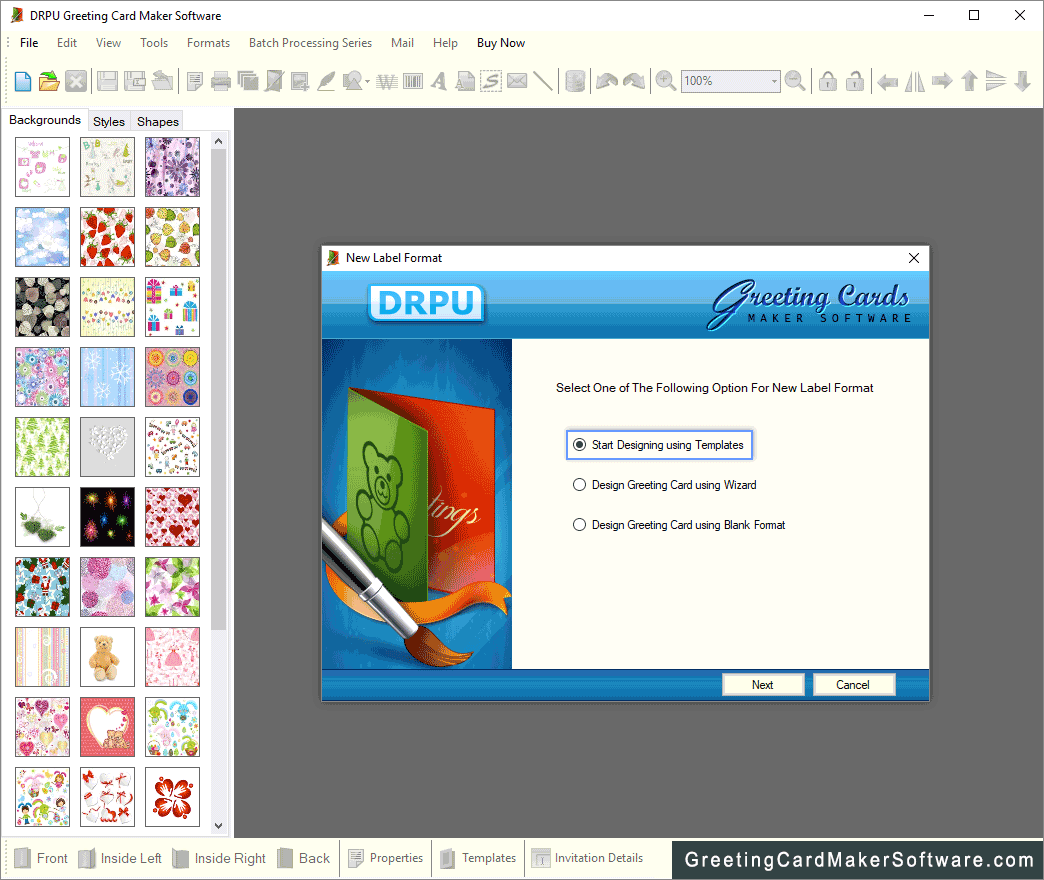
On selecting ‘Start with New label Format’ option, [This Screen] will appear:

Select one of the following options for new label format:

Create Label by Using Wizard: This option is used to start creating label by using wizard format.

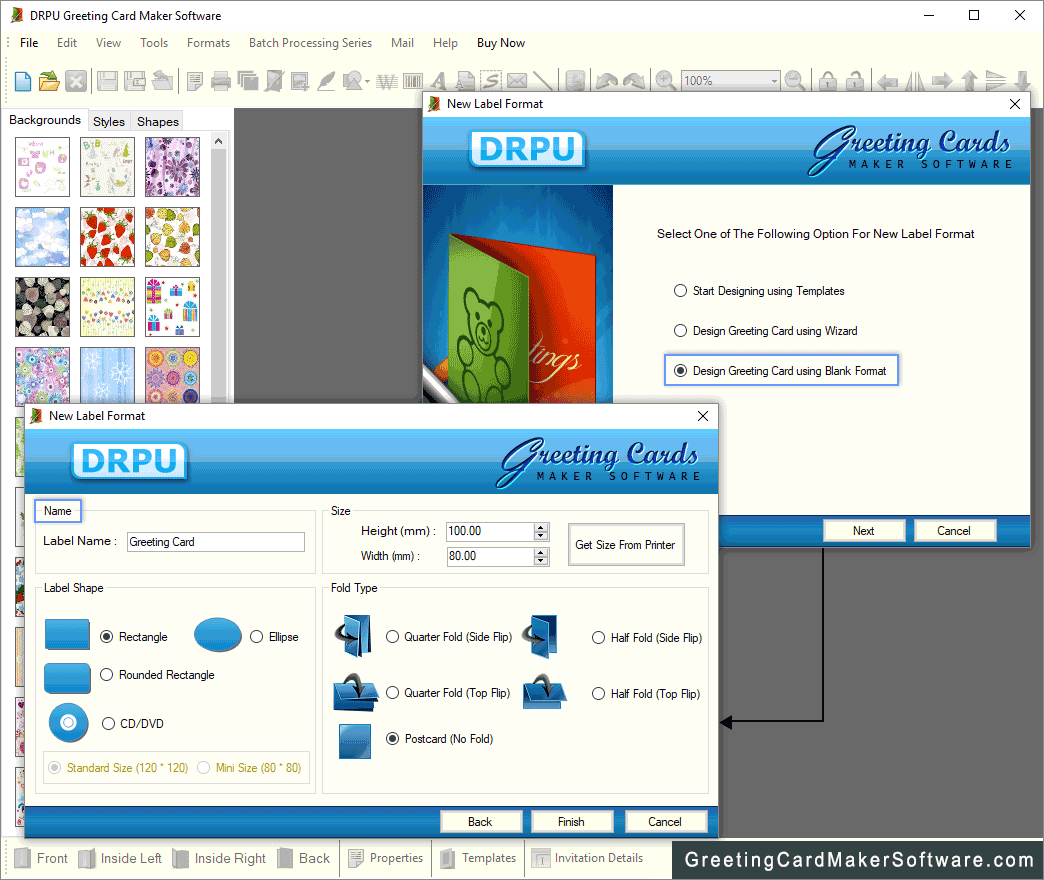
Create Label with Blank Format: This option is used to start creating label with blank format.

Click ‘Next’ button to continue.

Steps to create label by using wizard:

Step 1:

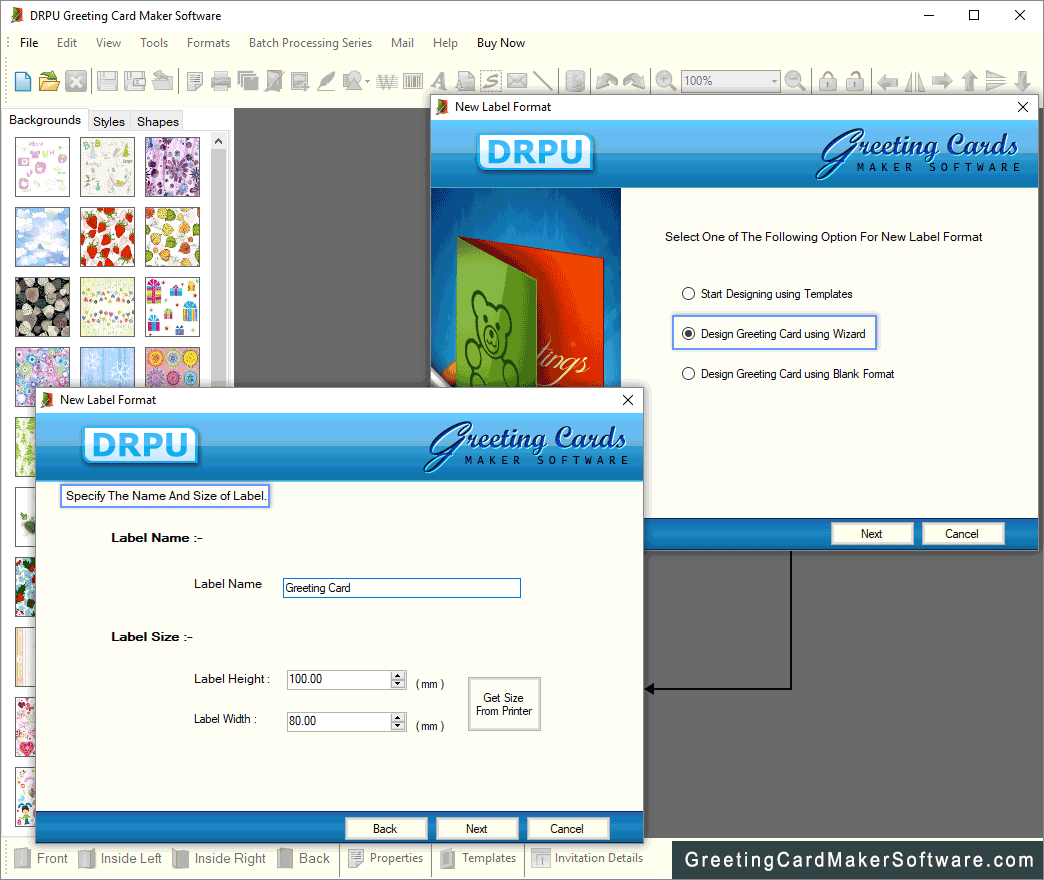
On selecting ‘Create Label by using Wizard’ option, [This Screen] will appear:

Specify the Label Name.

Specify the label Size. (Label Height and Label Width)

Click on Get Size from printer button to get label size from printer.

Click ‘Next’ button to continue.

Step 2:

On clicking ‘Next’ button, [This Screen] will appear:

Specify the type of Fold:

  • Quarter Fold (Side Flip)
  • Quarter Fold (Top Flip)
  • Half Fold (Side Flip)
  • Half Fold (Top Flip)
  • Postcard (No Fold)
  • Click ‘Next’ button to continue.

Step 3:

On clicking ‘Next’ button, [This Screen] will appear:

Specify the shape of Label from following options:

  • Rectangle
  • Rounded Rectangle
  • Ellipse
  • CD/DVD (Select the CD/DVD size)
  • Standard Size
  • Mini Size
  • Click ‘Next’ button to continue.

Step 4:

On clicking ‘Next’ button, [This Screen] will appear:

Specify the color and background settings of label including:

Solid Color: Specify the Solid Color to fill label region.

Gradient: Select the Start and End Color to fill Gradient region.

Angle: Select the angle of gradient region.

Image: Click “Browse" button to Select Image Path.

Image Fill As: Select the image position style.

Select from Library: Select the image from Library.

Style: Select the Fill Style to fill Label region.

Pen Color: Select the Pen Color.

Background Color: Select the Background Color.

Click ‘Next’ button to continue.

Step 5:

On clicking ‘Next’ button, [This Screen] will appear:

Specify the text feature of label including: (This is optional feature):

Select to add ‘Text Feature’ while label creation.

Add text in ‘Enter Text’ text field area.

Select text font on clicking ‘Select Font’ button.

Select text font color on clicking ‘Select Color’ button.

Select text location by specifying ‘Top’ and ‘Left’ margins.

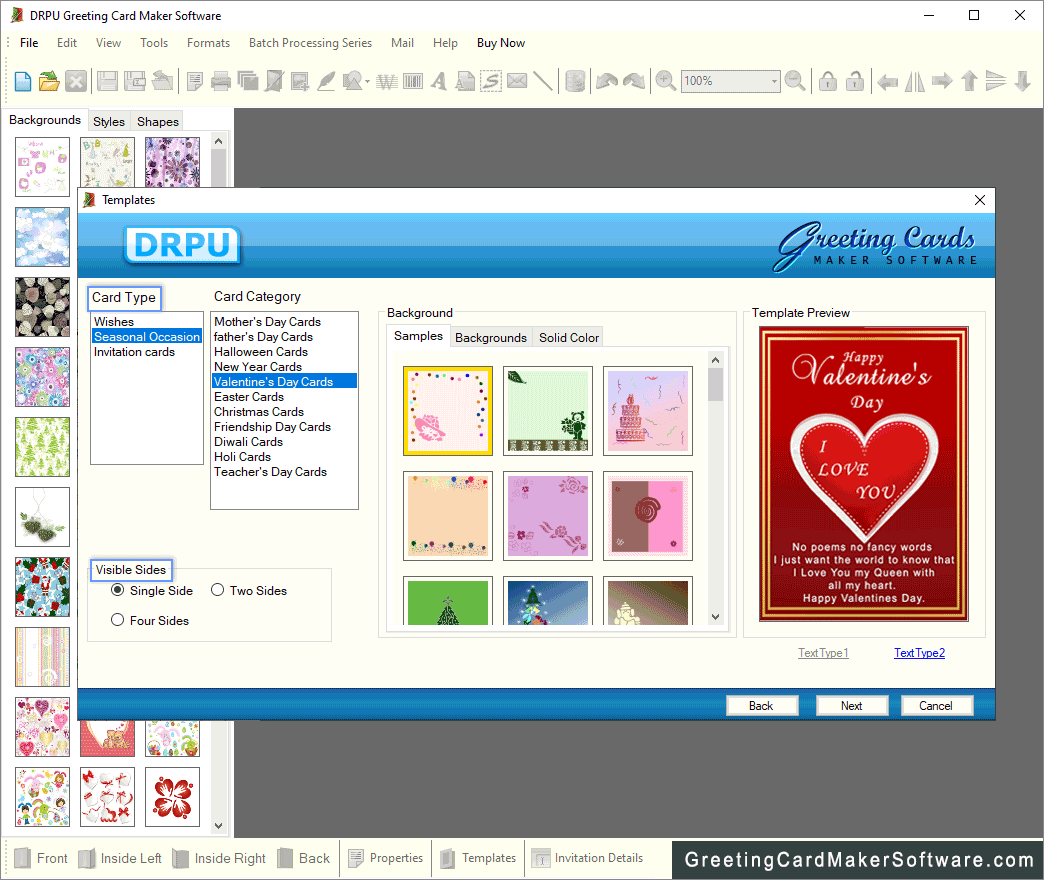
On clicking Insert Templates button [This Screen] will appear:

Click ‘OK’ button to continue.

Step 6:

On clicking ‘Finish’ button, [This Screen] will appear:

Print Designed Greeting Cards:

Create multiple Print Profiles in different formats using print setting properties, while printing designed greeting cards.

On clicking Print button, [This Window] will appear:

Print window includes following options:

Add: Click to create new print profile.

Edit: Click to edit existing print profile.

Delete: Click to delete created print profile.

Note: Default Print Profile cannot be deleted.

Steps to create New Print Profile:

Step 1: Click Add button, [This Window] will appear:

Enter the New Profile Name.

Step2: On clicking OK button, [This Window] will appear:

Edit the Page Setup properties as required and click OK button to apply the settings.

Set the Horizontal margin and Vertical margin between images while printing greeting card of the selected print profile as [This Screen] :

Set the Print options as [This Screen] :

The Print options includes following:

Select the Printer.

Enter the number of Cells.

Enter the number of Copies to print.

Print Preview/Preview: In Print Preview and Preview mode you can see how your profile will look when it prints.

Click "Print" button to print the greeting card using selected print profile.

Select "Print Border" option to print border while printing greeting card.


Copyright© greetingcardmakersoftware.com